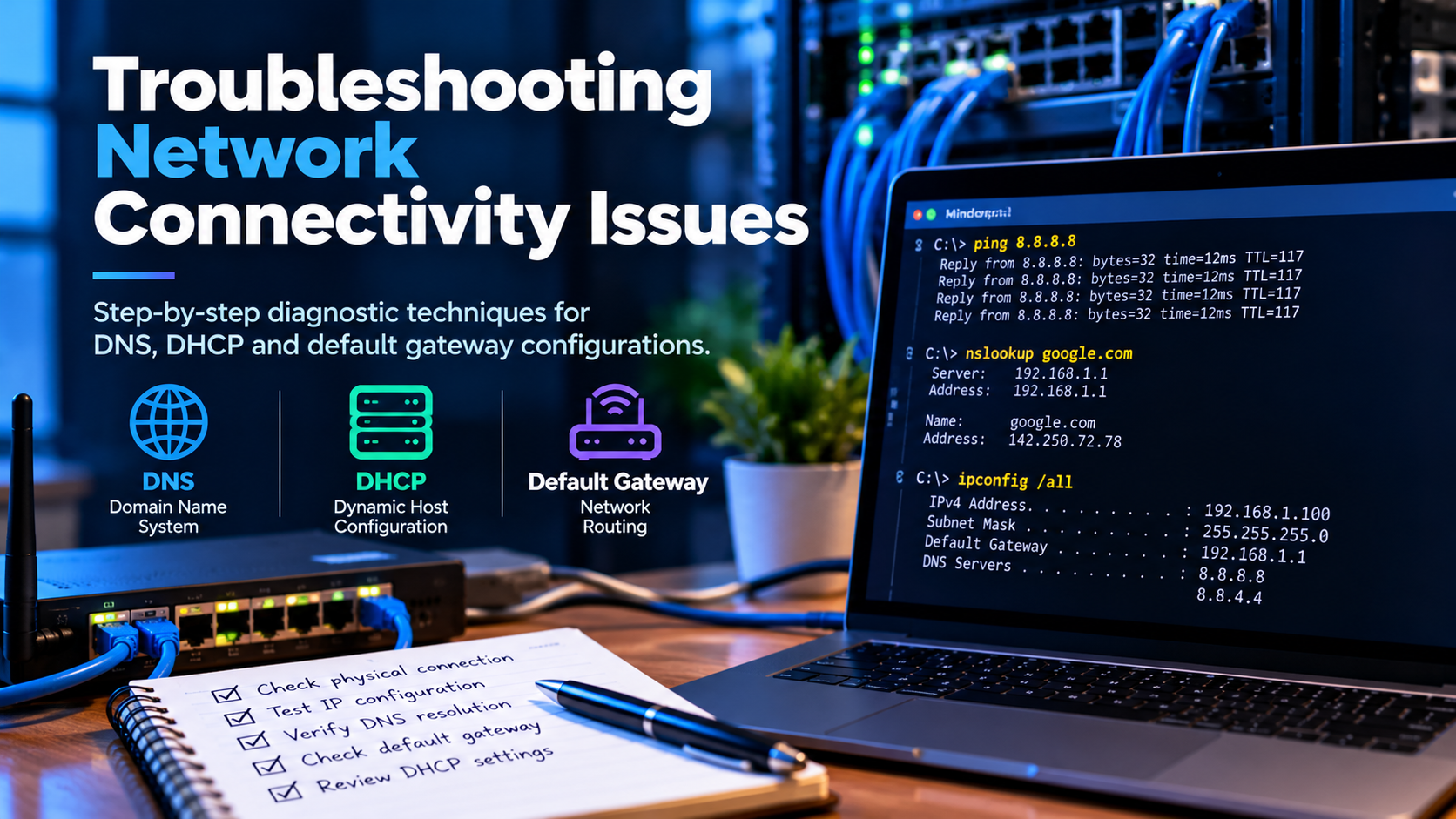
"The internet isn't working" covers an enormous range of causes. Working through the network stack in order — rather than guessing — narrows it down quickly and avoids changing settings that were never the problem.
Start at the bottom
Before touching any configuration, check the physical layer. Is the cable connected at both ends? Is the link light on? Is Wi-Fi enabled and connected to the expected network, rather than a neighbouring one with a similar name? A surprising proportion of tickets end here.
Establish the scope early, because it points directly at the likely cause:
- One application on one machine — application or firewall rule
- All applications on one machine — that machine's configuration
- Everyone in the building — switch, router, or the internet connection itself
Check the local IP configuration
ipconfig /all        # Windows
ip addr show         # Linux
ifconfig             # macOS / older Linux
Look for an address in the expected range. An address starting 169.254. on Windows means DHCP failed and the machine assigned itself a link-local address — it will not reach anything beyond the local segment. Renewing the lease is the usual first step:
ipconfig /release
ipconfig /renew
Test connectivity outward in stages
Ping progressively more distant targets. Where it first fails tells you where the problem is:
ping 127.0.0.1        # the machine's own TCP/IP stack
ping 192.168.1.1      # the default gateway
ping 8.8.8.8          # a public address, bypassing DNS
ping google.com # name resolution plus connectivity- Loopback fails — the local TCP/IP stack is broken, which is rare
- Gateway fails — a local problem: cable, switch port, VLAN or IP configuration
- Gateway works, 8.8.8.8 fails — routing or the upstream connection
- 8.8.8.8 works, the name fails — DNS. This is extremely common.
That last distinction is the single most useful one in this list: it separates "no connectivity" from "no name resolution", which have completely different fixes.
Diagnosing DNS
nslookup google.com
nslookup google.com 8.8.8.8   # query a known-good server directly
If the second works and the first does not, the configured DNS server is the problem. Clear the local cache before concluding anything:
ipconfig /flushdns              # Windows
sudo dscacheutil -flushcache    # macOS
sudo systemd-resolve --flush-caches   # Linux
Tracing the path
When traffic leaves the network but does not arrive, trace the route:
tracert google.com    # Windows
traceroute google.com # macOS / Linux
Read it for where latency jumps sharply or replies stop entirely. Note that some routers deliberately do not reply to these probes, so a single line of asterisks in the middle is not necessarily a fault — what matters is whether the trace completes.
Firewalls and security software
If one application fails while everything else works, suspect a firewall rule or endpoint security policy. Test by checking whether the specific port is reachable:
Test-NetConnection -ComputerName example.com -Port 443 # PowerShellDisable protection only briefly and deliberately, and re-enable it immediately after the test.
A practical order of operations
- Confirm the physical connection and determine the scope
- Check IP configuration and renew the DHCP lease if needed
- Ping outward in stages to isolate the failing layer
- Separate DNS failures from connectivity failures
- Trace the route if traffic leaves but does not return
- Check firewall rules for application-specific failures
- Restart networking hardware only once the evidence points there
Record what you find
Note the symptom, the commands run, their output and what resolved it. Recurring faults are common, and a short written record turns the second occurrence into a few minutes rather than a repeat of the full investigation. It also makes patterns visible — the same switch port failing repeatedly is information a single ticket will not reveal.